Reverse Engineering NSVisualEffectView
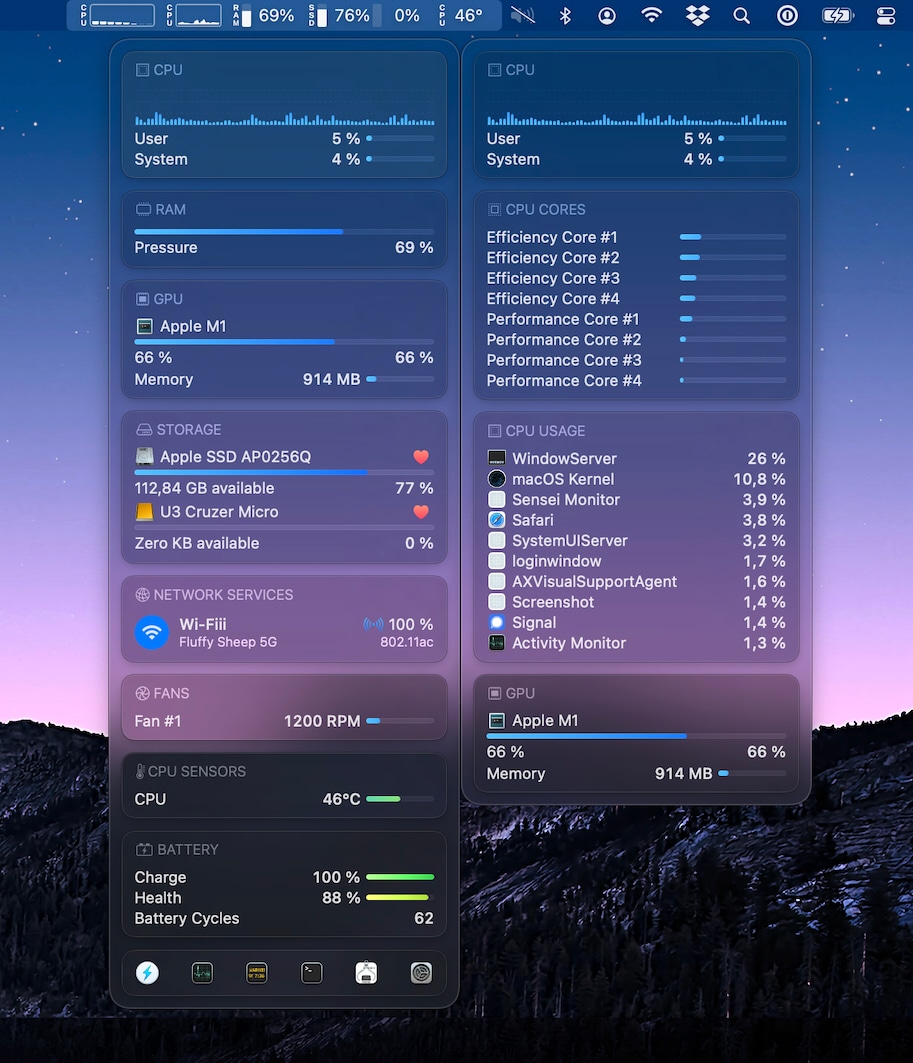
A few years back, I built Sensei Monitor, a companion app to Sensei. It's a completely customizable widget and panel system, allowing you to track any performance-related stats you want from your menu bar.
Menu bar panels on macOS tend to use vibrancy effects to blend with the system UI. Since this panel would be so prominent, I wanted that same native feel. At first, I tried every material available in NSVisualEffectView. But every single one left the panel either feeling too opaque, too flat, or disorganized. I really struggled to settle on a design.
Then I realized there was an app in macOS that had already solved this: Control Center.
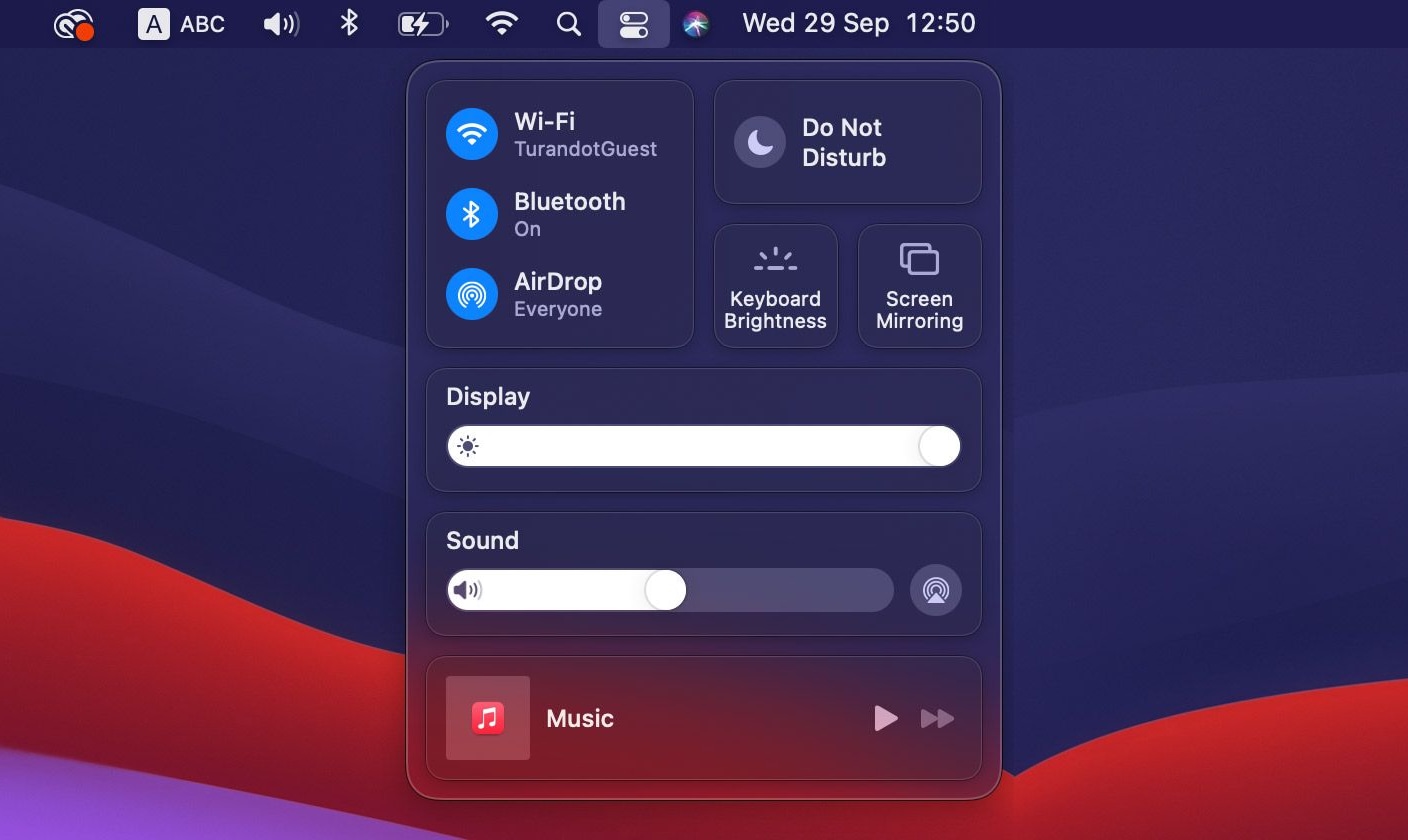
Control Center does a great job grouping information using multiple vibrant materials in a hierarchy. This was exactly what I needed. But there was a problem. Stacking various NSVisualEffectViews this way did not provide the result I was looking for, and all of their styles looked a bit "off" compared to Control Center. I was going to have to dig much deeper to replicate this look.
I proceeded to reverse-engineer Control Center using the Xcode view debugger and Hopper. It quickly became clear that Control Center was using its own entirely custom materials. This was not a matter of just finding a secret constant to pass to NSVisualEffectView.Material(rawValue:). To replicate this style, I'd have to create a completely customizable reimplementation of NSVisualEffectView.
NSVisualEffectView Internals
The Layer Stack
When you inspect an NSVisualEffectView with the Xcode view debugger, you'll find a carefully orchestrated stack of Core Animation layers:
NSVisualEffectView.layer
└─ container (CALayer)
   ├─ backdrop (CABackdropLayer)  ← The magic happens here
   └─ tint (CALayer)              ← Color overlay with blend mode
The CABackdropLayer is the key. It's a private Core Animation class that samples the content behind it and applies filters. The tint layer sits on top, blending a color to create the characteristic material appearance.
CoreUI Materials
Apple's built-in materials aren't computed from scratch. NSVisualEffectView loads pre-defined material configurations from CoreUI, a private framework that manages system assets. These materials are stored as structured recipes in .car (compiled asset catalog) files within system frameworks.
Each material recipe specifies the exact filter values, tint colors, and blend modes for different states (active, inactive) and appearances (light, dark, high contrast). When you set material = .sidebar, the view looks up the corresponding recipe and configures its layer stack accordingly.
This is why you can't create truly custom materials through the public API. You're limited to the recipes Apple has pre-baked into the system.
CABackdropLayer
CABackdropLayer is a private subclass of CALayer with the unique ability to sample content behind it and apply real-time filters. It supports group blending, configurable sampling resolution, and degrouping optimizations:
let backdrop = CABackdropLayer()
backdrop.allowsGroupBlending = true
backdrop.allowsGroupOpacity = true
backdrop.disablesOccludedBackdropBlurs = true
backdrop.ignoresOffscreenGroups = true
backdrop.scale = 0.25  // Performance: sample at quarter resolution
The scale property is important for performance. A value of 0.25 means the backdrop samples at quarter resolution before applying filters. This is why blur effects don't tank your frame rate.
Backdrop Filters
The blur, saturation, and brightness adjustments are applied through CAFilter, another private class:
let blur = CAFilter(type: kCAFilterGaussianBlur)!
let saturate = CAFilter(type: kCAFilterColorSaturate)!
let brightness = CAFilter(type: kCAFilterColorBrightness)!

blur.setValue(true, forKey: "inputNormalizeEdges")
backdrop.filters = [saturate, blur, brightness]
You can then adjust these filters by key path:
backdrop.setValue(30.0, forKeyPath: "filters.gaussianBlur.inputRadius")
backdrop.setValue(1.8, forKeyPath: "filters.colorSaturate.inputAmount")
backdrop.setValue(0.02, forKeyPath: "filters.colorBrightness.inputAmount")
Bleed
When applying a blur filter, pixels near the edges of the layer can produce artifacts because the blur kernel extends beyond the layer bounds. CABackdropLayer has a bleedAmount property that extends the effect sampling area beyond the visible bounds:
backdrop.bleedAmount = 10.0 // Extend sampling 10pt beyond boundsThis extra margin gives the blur filter enough context to produce clean edges without visible seams or hard cutoffs. The effect itself is still clipped to the layer bounds, but the sampling extends further.
The Tint Layer
The tint layer adds color to the blurred backdrop using a compositingFilter:
let tint = CALayer()
tint.backgroundColor = NSColor(white: 0.1, alpha: 0.5).cgColor
tint.compositingFilter = "lightenBlendMode"
Dark materials use lightenBlendMode with a dark background. Light materials use darkenBlendMode with a light background. This creates the characteristic look where the material adapts to content behind it while maintaining consistent contrast.
MaterialView: A Customizable Effect View
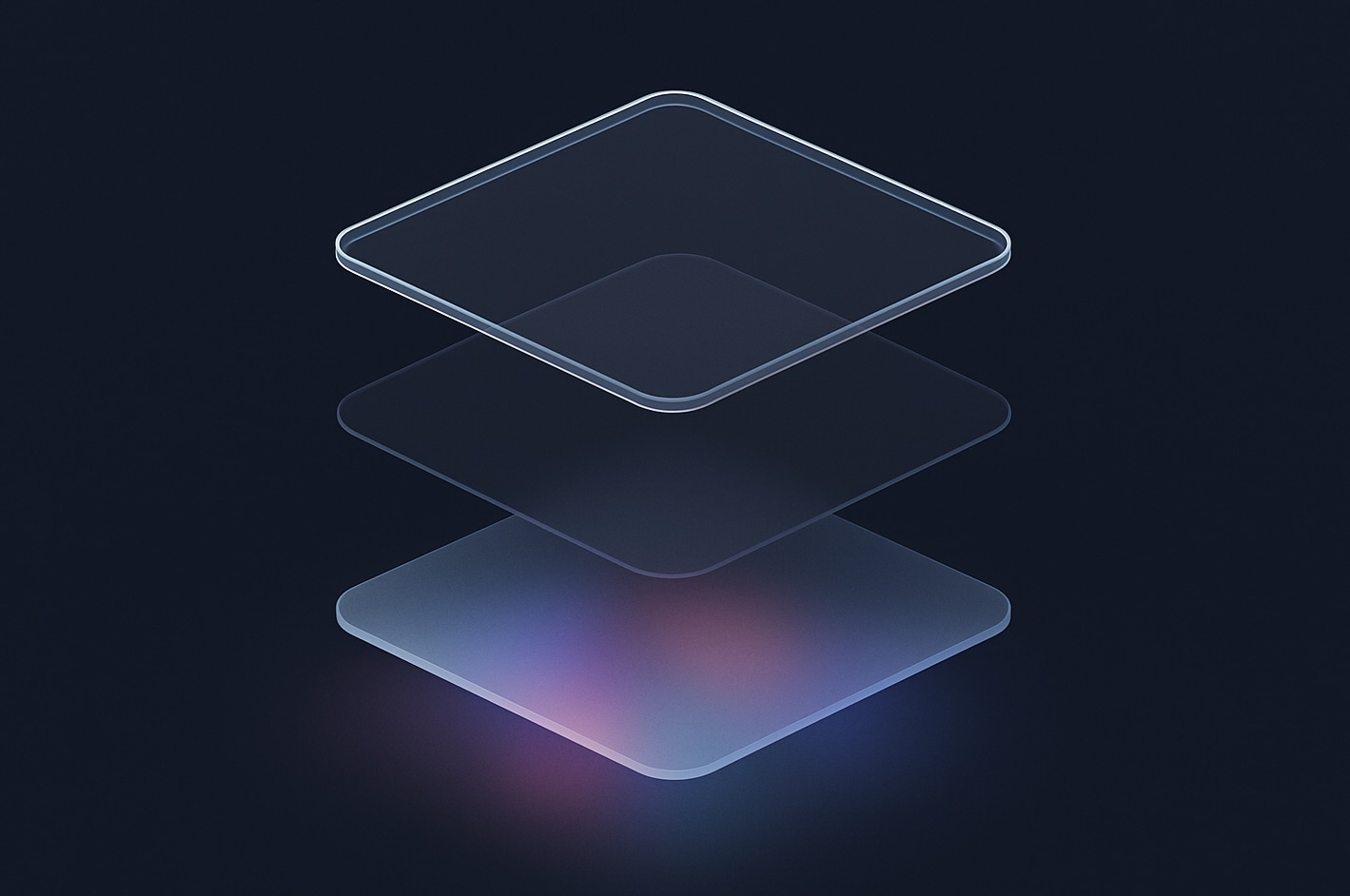
With the basic internals understood, I set out to build NSMaterialView, a subclass of NSVisualEffectView that takes over rendering entirely. The goal was to completely replicate the Control Center design: layered materials with different blur radii, saturation levels, and tint colors, all working together in a unified hierarchy.
Setting Up the Layer Hierarchy
The first step is creating the layer stack:
// Create the backdrop layer
let backdrop = CABackdropLayer()
backdrop.allowsGroupBlending = true
backdrop.allowsGroupOpacity = true
backdrop.disablesOccludedBackdropBlurs = true
backdrop.ignoresOffscreenGroups = true
backdrop.allowsInPlaceFiltering = false
backdrop.scale = 0.25

// Set up filters
let blur = CAFilter(type: kCAFilterGaussianBlur)!
let saturate = CAFilter(type: kCAFilterColorSaturate)!
let brightness = CAFilter(type: kCAFilterColorBrightness)!
blur.setValue(true, forKey: "inputNormalizeEdges")
backdrop.filters = [saturate, blur, brightness]

// Create tint and container layers
let tint = CALayer()
let container = CALayer()
container.masksToBounds = true
container.sublayers = [backdrop, tint]

layer?.insertSublayer(container, at: 0)
Modeling Effects
With the layer hierarchy in place, I needed a way to configure it. I created an Effect struct to bundle all the material parameters:
public struct Effect {
    public struct MaterialStyle {
        let backgroundColor: () -> NSColor
        let tintColor: () -> NSColor
        let tintFilter: Any?           // "darkenBlendMode", "lightenBlendMode", etc.
        let saturationFactor: CGFloat?
        let brightnessFactor: CGFloat?
        let blurRadius: CGFloat?
    }

    let active: MaterialStyle
    let inactive: MaterialStyle?
    let emphasized: MaterialStyle?
    let reducedTransparency: MaterialStyle?
    let increasedContrast: MaterialStyle?
    let rimColor: (inner: NSColor, outer: NSColor)
    let rimWidth: (inner: CGFloat, outer: CGFloat)
}
Colors are closures, so they re-evaluate when the appearance changes. This means you can use dynamic colors that automatically adapt to light/dark mode.
This allows building custom effects:
let ember = Effect(
    active: MaterialStyle(
        backgroundColor: NSColor(red: 0.2, green: 0.08, blue: 0.02, alpha: 0.55),
        tintColor: NSColor(red: 0.6, green: 0.25, blue: 0.05, alpha: 0.25),
        tintFilter: "plusD",
        saturationFactor: 2.2,
        brightnessFactor: 0.03,
        blurRadius: 30
    ),
    rimColor: (
        inner: NSColor(red: 1, green: 0.6, blue: 0.2, alpha: 0.35),
        outer: .clear
    )
)
When the effect property changes, the view applies the configuration to its layers:
public var effect: Effect = .clear {
    didSet {
        let config = effect.active

        // Apply filter values
        backdrop?.setValue(config.saturationFactor, forKeyPath: "filters.colorSaturate.inputAmount")
        backdrop?.setValue(config.brightnessFactor, forKeyPath: "filters.colorBrightness.inputAmount")
        backdrop?.setValue(config.blurRadius, forKeyPath: "filters.gaussianBlur.inputRadius")

        // Apply colors
        backdrop?.backgroundColor = config.backgroundColor().cgColor
        tint?.backgroundColor = config.tintColor().cgColor
        tint?.compositingFilter = config.tintFilter
    }
}
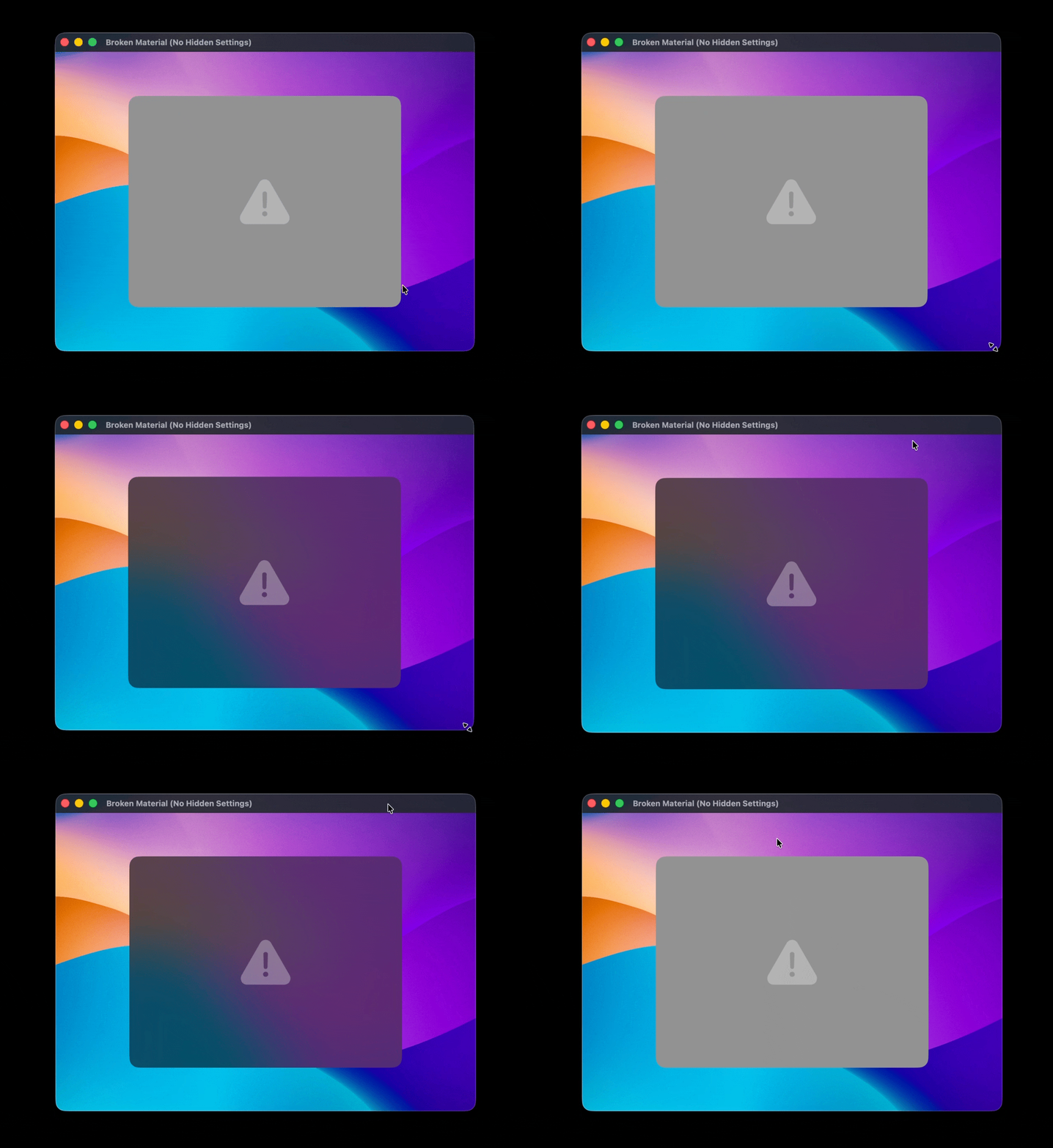
Simple enough. But when I ran this, the results were disappointing. The blur would flicker, sometimes showing doubled effects. The backdrop would randomly stop working after the window had been idle for a second. During Mission Control or Spaces swipes, everything would break. There were rendering artifacts everywhere.
Hidden Settings
Clearly I was missing something. During my research, I came across BackdropView by Aditya Vaidyam which provided some important clues:
The clear Key
NSVisualEffectView creates its own internal layer hierarchy for rendering materials. When you add your own CABackdropLayer, both implementations end up fighting for control. Setting this undocumented key tells the parent class to back off:
setValue(true, forKey: "clear")This resolved the doubled blur effects.
Window Properties
Several window and layer properties need to be configured correctly:
allowsInPlaceFiltering: When true, the backdrop layer attempts to apply filters in-place, reusing the same buffer. This can cause visual glitches where the blur appears to "lag" or show stale content. Setting it to false forces a separate buffer for the filtered result.
shouldAutoFlattenLayerTree: WindowServer automatically flattens the layer tree after about a second of inactivity for performance reasons. "Flattening" means compositing the entire layer hierarchy into a single bitmap, which eliminates the CABackdropLayer's ability to sample live content. Disabling this keeps the layer tree intact.
canHostLayersInWindowServer: This property controls whether the window's layer tree is managed by WindowServer (out-of-process) or the app itself (in-process). When a CABackdropLayer is added to a window that's already hosting layers in WindowServer, the backdrop won't work because WindowServer doesn't know about the new layer. Toggling this property off and back on forces the entire layer tree to be recreated with proper backdrop support:
window.setValue(false, forKey: "shouldAutoFlattenLayerTree")
window.setValue(false, forKey: "canHostLayersInWindowServer")
window.setValue(true, forKey: "canHostLayersInWindowServer")kCGSNeverFlattenSurfacesDuringSwipesTagBit: Even with auto-flattening disabled, WindowServer still flattens layer trees during Mission Control and Spaces swipes for smooth transitions. This makes sense for most windows, but breaks backdrop layers mid-swipe. You need to set a specific window tag via the private CGSSetWindowTags API to opt out:
var tags: [Int32] = [0x0, (1 << 16)]  // kCGSNeverFlattenSurfacesDuringSwipesTagBit
CGSSetWindowTags(contextID, windowNumber, &tags, 0x40)
Annoyingly, this tag gets reset after each window resize because _endLiveResize clears it. So you need to reapply it in your windowDidEndLiveResize handler.
Behind-Window Blending
There are two blending modes with very different behaviors:
Within-Window samples content from other layers in the same window. Good for overlapping UI elements.
Behind-Window samples content from behind the entire window: the desktop, other apps. This requires special window configuration:
window.setValue(false, forKey: "shouldAutoFlattenLayerTree")
window.setValue(false, forKey: "canHostLayersInWindowServer")
window.setValue(true, forKey: "canHostLayersInWindowServer")
window.isOpaque = false
window.backgroundColor = NSColor.white.withAlphaComponent(0.001)
The CABackdropLayer also needs:
backdrop.windowServerAware = true
backdrop.allowsSubstituteColor = true
The allowsSubstituteColor property is important: when the backdrop can't sample the actual content behind the window (secure input fields, DRM-protected video, screen recording restrictions), WindowServer substitutes a solid color instead. Without this, you'd get black rectangles.
MaterialView handles this automatically when you set it as the window's content view, or when you set isContentView = true.
Blend Groups
Multiple CABackdropLayers can be grouped so they composite as a single continuous surface:
public final class BlendGroup {
    fileprivate let value = UUID().uuidString
    public static let global = BlendGroup()
}

// Usage:
backdrop.groupName = blendGroup?.value ?? UUID().uuidString
Without a shared group, each backdrop samples independently, creating visible seams at the boundaries.
Once I adopted most of these fixes, everything finally worked. I could now create any custom material I wanted.
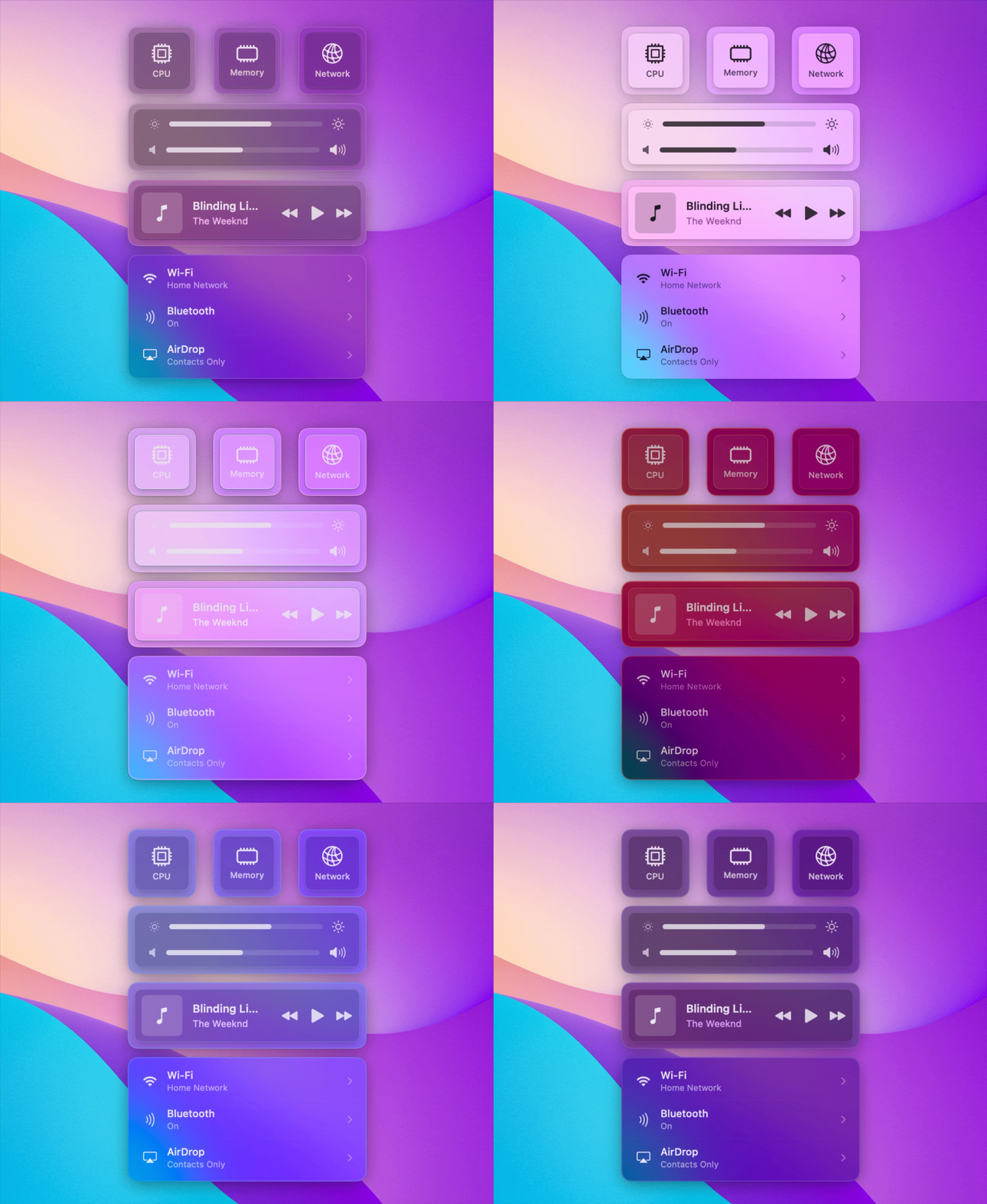
But it still required a few more final touches before it would feel like a truly high quality native component.
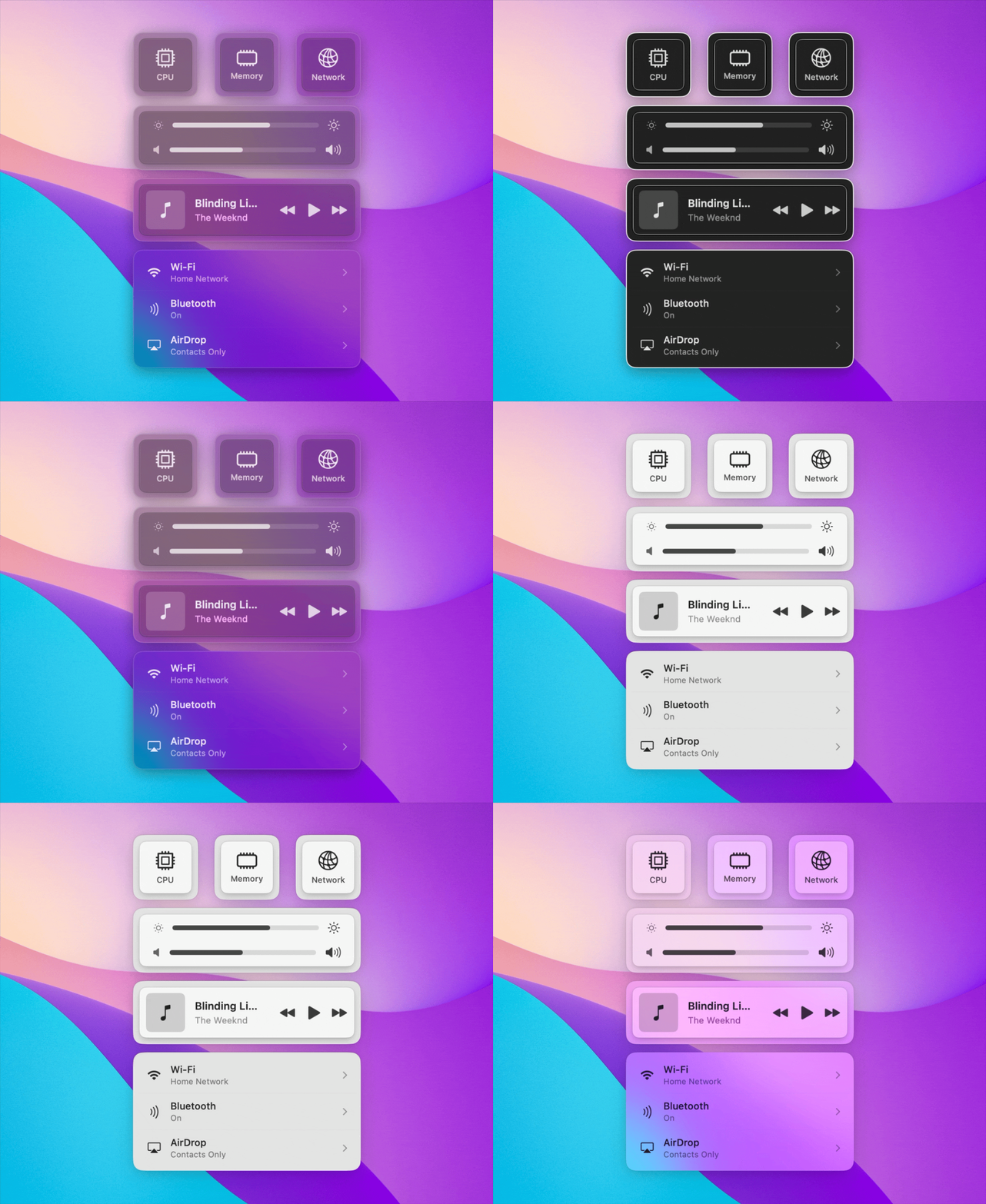
Accessibility Fallbacks
When "Reduce Transparency" is enabled in System Preferences, blur effects should be replaced with solid colors. MaterialView handles this with a dedicated colorFillLayer that replaces the backdrop and tint layers with a fully opaque color. If the effect doesn't define an explicit accessibility configuration, one is auto-derived by taking the active background color at full opacity.
For "Increase Contrast", MaterialView also forces any rim borders to full opacity and 1px width, ensuring clear visual boundaries.
State Management
macOS materials change based on window state. An inactive window shows a more muted effect: lower saturation, sometimes different colors entirely. MaterialView handles this automatically:
public func resolvedConfig(
    isWindowActive: Bool,
    isEmphasized: Bool,
    reduceTransparency: Bool,
    increaseContrast: Bool
) -> MaterialStyle {
    // Priority order:
    // 1. Increased contrast (accessibility)
    // 2. Reduced transparency (accessibility)
    // 3. Emphasized state
    // 4. Inactive state
    // 5. Active state (default)
}
The view observes NSWindow.didBecomeMainNotification and didResignMainNotification to trigger updates. If you don't provide an explicit inactive style, it auto-derives one from the active configuration.
The Rim Layer
System materials often have subtle edge highlights: a thin bright line on one edge, a dark line on another. MaterialView includes a dedicated RimLayer:
class RimLayer: CALayer {
    var innerColor: NSColor   // Typically white with low alpha
    var outerColor: NSColor   // Typically black with low alpha
    let inner = CALayer()     // Nested for the inner border

    func setupCornerRadius() {
        inner.cornerRadius = _cornerRadius
        cornerRadius = _cornerRadius + borderWidth
    }
}
The rim is positioned slightly outside the container bounds, with the inner sublayer inset. This creates the characteristic double-border effect you see on macOS panels.
The Result
With all the pieces in place, I finally had what I set out to build: a panel that matched Control Center's layered material hierarchy. Sensei Monitor shipped with fully customizable materials that adapted to light and dark mode, respected accessibility settings, and worked reliably across all system states.
You can get Sensei here.
Open Sourcing MaterialView
I've open sourced the MaterialView library so others can build custom materials without reverse engineering everything themselves. The repository includes a demo app that lets you experiment with different effect configurations in real time: adjust blur radius, saturation, brightness, tint colors, and blend modes to see how they interact.
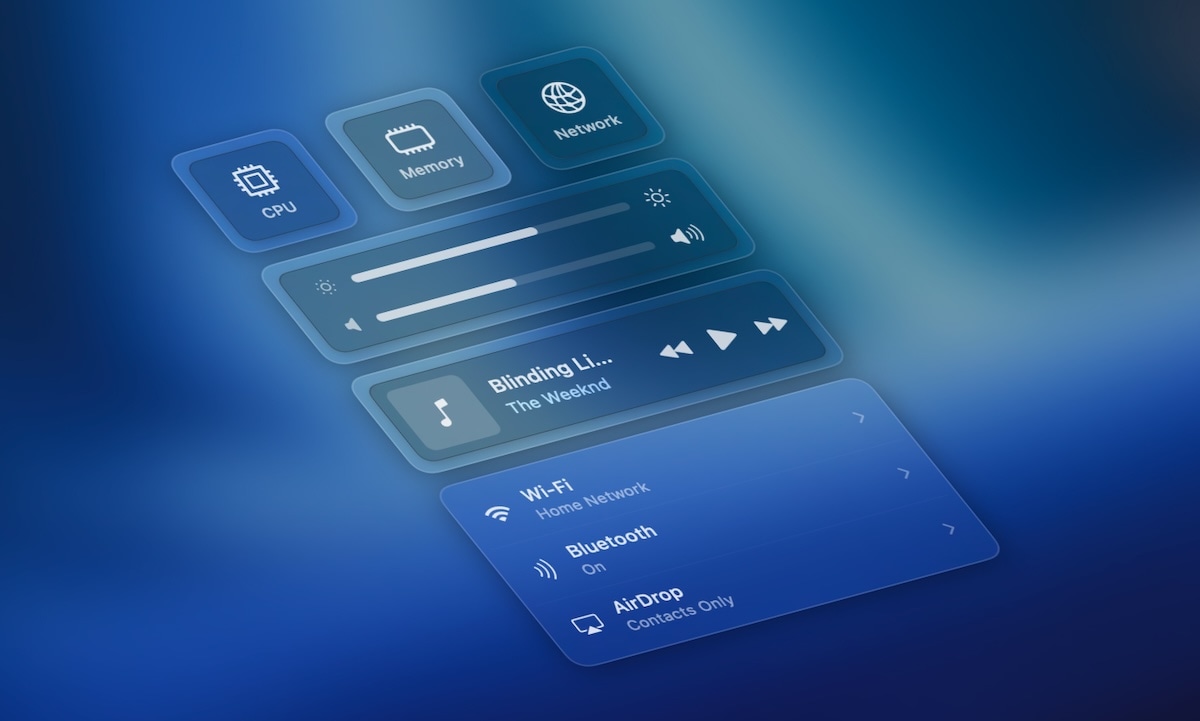
MaterialView is available at github.com/OskarGroth/MaterialView.